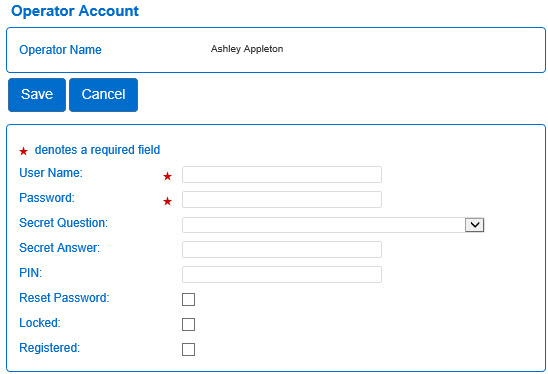
- Enter the User Name.
- Enter the Password.
- Press the drop-down arrow to select a Secret Question.
- Enter the Secret Answer in response to the Secret Question previously selected.
- Enter a PIN (Personal Identification Number).
- Check the Reset Password checkbox to force the Operator to reset the password during the next login attempt.
- Check the Locked checkbox in the event it is necessary to prevent the Operator from accessing the system. This box automatically checks upon too many unsuccessful login attempts. In that case, the Operator will contact the TAP support center who will unlock upon proper identification.
- Check the Registered checkbox to indicate that the Operator has already completed the registration process.